

HMI Widget Library manual
Version 1.3 · TIA Portal V18–V21 · October 2026
Description
Version 1.3 contains 529 industrial widgets in 25 categories and 434 flat variants. The equipment includes motors, pumps, valves, vessels, silos, boilers and sensors. For WinCC Unified, use the SVGHMI files or the TIA Portal Global Library. For other SCADA platforms, use the supplied SVG, PNG or JPEG graphics, or export a state in your own colours with the SVGHMI Renderer.
Limitations
Full functionality is supported in WinCC Unified PC RT (V18, V19, V20, V21 tested). Animation (SMIL) and the hover effect are not officially supported by Siemens, so they work only in WinCC Unified PC RT; on Unified Basic and Comfort Panels they do not work. This concerns widgets with continuous motion (Rotate, Run) and the hover effect (e.g. HoverZone). Blurring with SVG filters is not rendered on panels either.
Everything that is driven by a property value rather than by animation works on panels too: colours, Level, Position, Flip, Flame, LegLength and the show/hide flags.
Usage
There are two ways to get widgets into your project.
SVGHMI files
- Copy the contents of the
SVGHMIfolder (and, if needed,Flat/SVGHMI) into your project folder along the following path:YOUR_PROJECT_FOLDER\UserFiles\SvgControls. If theSvgControlsfolder does not exist, create it. - Open your TIA Portal project.
- Open any screen.
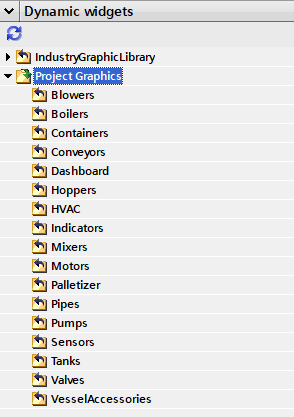
- Push the button Refreshes the outdated dynamic graphics in the Dynamic widgets section.
- You will see the new widgets.
Global Library
Take the library file
SVGHMI.pro_WidgetLibraryUnified.zalXXthat matches your TIA Portal version (.zal18,.zal19,.zal20or.zal21).Go to Options → Global libraries → Open library…
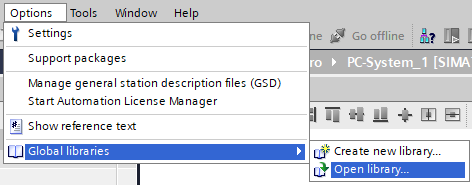
Select Compressed libraries as the file type and choose the file.

Unpack the library into your workspace folder.
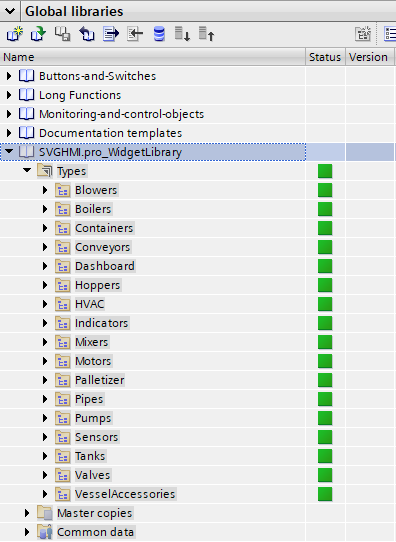
Now you can see the SVGHMI.pro library in the TIA Portal Global libraries tab.
Properties
Every widget exposes its options as properties of the dynamic widget. One name always has one meaning across the whole library, so you only need to learn it once. A widget has only the properties that make sense for it.
Colours
| Property | Meaning |
|---|---|
BasicColor | Colour of the body; all shading is derived from it |
AlternateColor | Second recolourable part (handle, insert, inner wall of a cutaway) |
MotorColor | Motor of a pump/compressor set, separately from the body (run/fault state) |
PlateColor, FrameColor | Base plate, frame and supports |
LiquidColor, MaterialColor | Liquid / bulk material inside |
HotColor, ColdColor | Hot and cold medium of boilers and heat exchangers |
FabricColor, CoilColor, InsulationColor, BurnerColor, FlameColor, VibratorColor | Specific parts of silos and boilers |
BasicLeftColor, BasicRightColor, BasicBottomColor | Each port of 2-/3-way valves (flow path state) |
State and geometry
| Property | Type | Meaning |
|---|---|---|
Flip | boolean | Mirror horizontally (stays within the widget frame) |
Position | number 0–100 | Position of the moving part, 100 = open (valves, gates, dampers) |
Level, LevelMin, LevelMax | number | Fill level and its scale (default 0–100) |
Temperature, TempMin, TempMax | number | Medium temperature and its scale (tint of the medium) |
Flame | boolean | Burner flame visible — independent of Run, so it also works without animation |
Heating | boolean | Heater on — highlights the heating element |
LegLength | number 0–100 | Silo leg length: 0 = feet level with the outlet, 100 = room for a feeder below |
Shaft | boolean | Show the motor shaft |
Legs, Ladder, Outlet, Vibrator, Burner, TopFlange, SideFlanges, Support | boolean | Show/hide optional parts |
Motion (PC RT only)
| Property | Type | Meaning |
|---|---|---|
Rotate | boolean | Continuous rotation (fans, impellers, gears, mixers) |
Run | boolean | Continuous motion (screws, belts, product flow, pistons, bubbles) |
Speed, SpeedMin, SpeedMax | number | Speed: one revolution per second at SpeedMax, proportionally slower below. The range defaults to 0–100; you can bind a raw tag directly, e.g. set SpeedMax = 1450 and bind Speed to the motor rpm |
Direction | boolean | Direction of rotation / motion |
Animation/Hover effect
To see the animation and hover effect in action, enable the desired property (Rotate or Run for animation) and load your project into Runtime. Animation and hover effect work only in Runtime (PC RT), not in the TIA Portal editor.
Changing Speed or Direction while the widget is running takes effect immediately. Stopping is done through Rotate/Run: the moving parts stay where they are.
Usage in Faceplates
Starting with TIA Portal V18 it is possible to use SVGHMI dynamic widgets in faceplates, but the Dynamic SVG library element must be created beforehand. Since the package contains a Global Library in which all widgets are organised, you can use them in your faceplates without any problems.
Flat versions
The Flat folder contains flat versions of the widgets: the same shapes and properties without gradients, highlights and shadows — suited for ISA-101 / high-performance HMI screens. File names end with -flat (e.g. Pump-01-flat.svghmi), so flat and regular widgets can be used side by side in the same SvgControls folder.
Flat versions contain no animation: rotation, running media, vapour and flicker are left out, and the motion properties (Rotate, Speed, Run, …) are removed. Everything driven by a value stays — Level, Position, colours, heating / cooling tints and the show/hide flags.
SVGHMI Renderer
svghmi-renderer.zip contains SVGHMI Desktop Renderer 2.6.0 — a Windows application that opens .svghmi widgets without TIA Portal, lets you change their properties and exports the result to SVG or PNG. Use it to preview the library, pick colours and options before building a screen, or produce pictures for documentation, manuals and other SCADA systems in exactly the look you need.
The archive holds two variants of the same program, plus its user guide and changelog (README.pdf, CHANGELOG.pdf):
SVGHMI Renderer_2.6.0_x64_en-US.msi— Windows installer: the app appears in the Start menu and.svghmifiles open in it with a double-click;svghmi-renderer_2.6.0_Portable.exe— single file, nothing to install (can live on a USB stick).
Requirements: Windows 10/11 with WebView2 (included in modern Windows). On the first launch the rendering engine is unpacked to %TEMP%\svghmi-renderer\, which takes a few seconds; after an update the new engine is always used.
Opening widgets
- Double-click a
.svghmifile in Explorer (or right-click → Open with → SVGHMI Renderer). The installer sets this up automatically; with the portable.execlick Open .svghmi files with SVGHMI Renderer once at the bottom of the welcome screen (no administrator rights needed). - One window: if the app is already running, new files are added to the open window. Select several files in Explorer and press Enter to open them together.
- Drag & drop files from Explorer onto the window; drop a folder to browse it.
- Browse opens a library folder (e.g.
SVGHMI\Pumps) and previews all its widgets; Load SVGHMI File / Add Widget open single files.
Working with widgets
- The sidebar shows the widget's properties: switches for boolean, sliders for numbers, a colour picker for
HmiColor. The preview updates as you edit. When several widgets are loaded, a property with the same name changes all of them at once (coloured badges show which widgets it affects). - Export (top right of the preview) saves SVG or PNG: custom size or presets, transparent background; non-square sizes keep the aspect ratio and centre the widget. Several widgets can be exported to a folder in one go.
- F5 reloads the widgets from disk and keeps your property values (handy when you edit a
.svghmifile in a text editor). The Fullscreen button on a widget's card shows it enlarged.
Version 2.4+ renders WinCC Unified widgets more faithfully: colour lightening/darkening, text bindings and properties used inside gradients are supported.
Command line
The same .exe works as a command-line tool for batch work:
:: list the properties of a widget with their types and defaults
svghmi-render.exe params SVGHMI\Pumps\GearPump-01.svghmi

:: export a PNG with custom property values
svghmi-render.exe export SVGHMI\Hoppers\Silo-01.svghmi -o silo.png -W 512 -H 512 -p Level=70 -p BasicColor=0xFF4A7FB5

:: export a whole category to 256 px PNG
for %%f in (SVGHMI\Valves\*.svghmi) do svghmi-render.exe export "%%f" -o "out\%%~nf.png" -W 256 -H 256
Options: -o output file (.svg or .png), -f format, -W/-H PNG size in pixels (default 512), -p name=value property override (repeatable; colours as 0xAARRGGBB). The renderer draws a still picture: SMIL animation is not played, but every property value — Level, Position, Flip, Flame, colours, show/hide flags — is applied.
The full description is in README.pdf inside the archive; the license terms open with View License on the welcome screen. Exported SVG/PNG files are yours without restrictions; the program itself must not be passed on to others.
Folder structure
svghmi-widget-library/
|- JPEG/                       # Images with white backgrounds
|  |- Blowers/
|  |  |- 64px/                 # Width 64 pixels (grey, green, red, yellow)
|  |  |- 128px/                # Width 128 pixels (grey, green, red, yellow)
|  |  |- 256px/                # Width 256 pixels (grey, green, red, yellow)
|  |- Boilers/ … VesselAccessories/
|- PNG/                        # Images with transparent backgrounds (same layout)
|- SVG/                        # Vector images
|  |- Blowers/                 # Blower images
|  |- Boilers/                 # Boiler images
|  |- …
|- SVGHMI/                     # WinCC dynamic widgets
|  |- Agitators/               # Stand-alone agitators (put over any vessel)
|  |- Blowers/                 # Blowers and fans
|  |- Boilers/                 # Boilers, burners, deaerator
|  |- BulkHandling/            # Rotary feeders, screw conveyors
|  |- Compressors/             # Compressors, air receivers
|  |- Containers/              # Containers, packaging, IBC (Eurocube)
|  |- Conveyors/               # Belt conveyors
|  |- Dashboard Prof/          # Dashboard widgets, Prof style
|  |- Dashboard Unified/       # Dashboard widgets, Unified style
|  |- FoodBeverage/            # Brewery: kettle, lauter tun, fermenter, bright beer tank, CIP
|  |- HeatExchangers/          # Shell-and-tube, plate, coils, economizer
|  |- Hoppers/                 # Hoppers and silos
|  |- HVAC/                    # HVAC ducts and dampers
|  |- Indicators/              # Indicator widgets
|  |- Mixers/                  # Mixing tanks, blenders, disperser
|  |- Motors/                  # Motors
|  |- Palletizer/              # Palletizer widgets
|  |- Pipes Prof/              # Pipe widgets, Prof style
|  |- Pipes Uni/               # Pipe widgets, Unified style
|  |- Pumps/                   # Pumps and pump sets
|  |- Reactors/                # Stirred reactors, autoclave, fixed-bed reactor
|  |- Sensors/                 # Sensor widgets
|  |- Separation/              # Columns, scrubber, separators
|  |- Tanks/                   # Tanks and vessels with level
|  |- VacuumPumps/             # Vacuum pumps
|  |- Valves/                  # Valve widgets
|  |- VesselAccessories/       # Vessel accessories
|- Flat/                       # Flat versions
|  |- JPEG/  PNG/  SVGHMI/     # Same layout as above
|- SVGHMI.pro_WidgetLibraryUnified.zal18/19/20/21  # Global Library for TIA Portal V18/V19/V20/V21
|- SVGHMI.pro_WidgetLibraryManual.pdf            # This manual
|- svghmi-renderer.zip                           # SVGHMI Desktop Renderer (Windows)
Upgrading from v1.2
Version 1.3 moved some widgets to new folders (see Breaking changes in the Changelog). A widget placed on a screen is bound to its folder in SvgControls: if the file moves to another folder, the screen loses it — even when only one copy exists. And a widget name must stay unique in SvgControls, so the old and the new copy cannot live side by side.
New project — copy the v1.3 SVGHMI folders into UserFiles\SvgControls as they are.
Existing project (keep your screens working) — keep the moved widgets in their v1.2 folders:
- Copy the v1.3
SVGHMIfolders intoUserFiles\SvgControls, except the moved widgets listed below (delete them from the new folders after copying, or do not copy them). - Put the v1.3 files of these widgets into their v1.2 folders (
Mixers,Boilers,Containers), overwriting the v1.2 copies — the screens keep working and get the v1.3 look. - Close all screens, push Refreshes the outdated dynamic graphics, open the screens again, then Compile → Rebuild All.
If you want the new folders in an existing project, every screen object using a moved widget has to be placed again after the move — plan it as a separate step.
Global Library: in the v1.3 library the moved widgets are in their new folders (Agitators, Motors, BulkHandling, HeatExchangers, Tanks); the names are unchanged.
| Widget | v1.2 folder | v1.3 folder |
|---|---|---|
| Agitator-01…04, Blades-01 | Mixers | Agitators |
| MixerMotor-01 | Mixers | Motors |
| RotaryFeeder-01, ScrewConveryor-01 | Mixers | BulkHandling |
| Heater-02 Prof, Heater-02 Uni, Heater-03 | Boilers | HeatExchangers |
| HydroPneumaticTank | Containers | Tanks |
Troubleshooting
- If you have made manual changes to a widget, close all screens in TIA Portal, refresh the widgets and then open the screens again to see the effect. For the changes to be applied in Runtime (browser), run Compile → Rebuild All: when only delta changes are loaded, the widget is not updated.
- The file name of the widget must be unique and must not match any other file in your
SvgControlsfolder — both the one in the project folder and the one in the TIA Portal installation folder. Also, the<hmi:self />element at the beginning of the widget file has two attributes,displayNameandname; they must be unique too, andnamemust start with theextended.prefix. - An animation does not move: check that you are in PC RT (not a panel) and that
Rotate/Runis on andSpeedis aboveSpeedMin.
Changelog
Version 0.9 (Beta) [12 Nov 2024]
- Added motors pack
- Fixed shaft property in some widgets
- Changed default colours
Version 1.0 (Release) [20 Nov 2024]
- Added indicator widgets
- Fixed gradient of
SimpleTrend-01.svghmi - Fixed bugs with default values
Version 1.3 [October 2026]
Breaking changes — folders reorganised by equipment type. The widget names stay the same, but these widgets now live in a different folder (SVGHMI, SVG, PNG, JPEG and the Global Library). In a project updated from v1.2 they can get "lost" (looked for in the old folder) or appear twice (old and new folder) — follow Upgrading from v1.2:
Agitator-01…04,Blades-01: Mixers → AgitatorsMixerMotor-01: Mixers → MotorsRotaryFeeder-01,ScrewConveryor-01: Mixers → BulkHandlingHeater-02 Prof,Heater-02 Uni,Heater-03: Boilers → HeatExchangersHydroPneumaticTank: Containers → Tanks
New folders: Agitators, BulkHandling, Compressors, FoodBeverage, HeatExchangers, Reactors, Separation, VacuumPumps.
151 new widgets:
- Valves (28): gate, knife gate, ball, butterfly, control, check, safety, solenoid, diaphragm, pressure-reducing, dosing and breather valves; manual, electric and pneumatic actuators; 2-/3-way valves with per-port flow colours. Moving parts follow
Position. - Pumps (13): centrifugal, multistage, screw, gear, plunger and hydraulic pump sets; inline, submersible, drainage and peristaltic pumps; cutaway versions with moving rotors and gears.
- VacuumPumps (16): rotary vane, liquid ring, Roots, screw, diaphragm, turbomolecular, diffusion, sorption, ion, getter, cryo pumps, steam ejector.
- Tanks (13): vertical, horizontal, cone-bottom, flat-bottom and floating-roof tanks, pressure vessel, stainless (hygienic) tanks, water towers, LPG bullet — all with liquid level and gauge glasses.
- Hoppers (15): hoppers, steel silos and fabric silos with level, switchable legs (
LegLength), ladder, outlet and bin activator with vibration. - Mixers (8): mixing tanks with paddle, anchor, propeller, Rushton turbine, two-stage and side-entry agitators, ribbon blender, disperser — the agitators turn smoothly with
Rotate. - Agitators (6): stand-alone anchor, gate and scraper agitators on a transparent background — place them over any vessel picture.
- Reactors (5): jacketed, glass-lined and half-pipe coil reactors, autoclave, fixed-bed reactor.
- Separation (4): distillation column, scrubber, three-phase and vertical separators.
- FoodBeverage (5): brew kettle, lauter tun, fermenter (CCT), bright beer tank, CIP skid.
- Boilers (9): steam and hot-water boilers (incl. cutaway versions with flame, water and flue-gas flow), indirect water heater, burners, deaerator.
- HeatExchangers (5): shell-and-tube and plate heat exchangers, economizer.
- Compressors (6): screw and piston compressors, air receivers.
- VesselAccessories (8): manhole, nozzle flange, pressure gauge, silo outlets, dished head, legs, saddle.
- Motors (6): gear motor, motor with brake, explosion-proof, large, TEFC and servo motors; removable shaft.
- Blowers (1): Roots blower set. BulkHandling (1): rotary feeder with animated material. Containers (1): Eurocube-02 (IBC with level). HVAC (1): damper actuator.
New: Flat versions of 434 widgets in the Flat folder (static, no animation).
New: Global Library for TIA Portal V21 (SVGHMI.pro_WidgetLibraryUnified.zal21).
SVGHMI Desktop Renderer updated to 2.6.0 (open from Explorer, drag & drop, one window) and now described in this manual.
Changes to existing widgets (properties unchanged, existing screens keep working):
- Softer, more realistic shading of the equipment widgets.
- Lighter default colours of the motors.
- Rotating widgets got
Speed,SpeedMin,SpeedMaxandDirection; the default speed is calmer than before. Flipkeeps the widget within its frame.